

If a Vercel project still targets Node.js 20, check its next deployment before starting another feature release. Vercel's July 14 notice set October 1, 2026 as the deprecation date for Node.js 20 builds and functions. Existing deployments keep working; new deployments using that version are the immediate concern.
This migration guide, checked October 7, explains how to locate the effective runtime, choose a supported target, test dependencies, and prepare a release path. It is intended for teams maintaining an existing Node.js application, especially when a green production site hides a broken build pipeline.
Key takeaways
- A working production URL does not prove the next deployment will succeed.
- Choose a supported runtime compatible with your framework and dependencies; Node.js 24 is the practical starting point in this guide.
- Align local development, package metadata, CI, and hosting settings, then verify the runtime actually used.
- Preserve a known-good deployment and separate runtime migration from unrelated feature changes.
What changed on October 1
Vercel's dated deprecation announcement says Node.js 20 reached end of life on April 30, 2026 and was deprecated for its builds and functions on October 1. The notice distinguishes existing deployments, which continue to work, from new deployments, which fail when configured for the deprecated version.
Treat this as a delivery dependency even if uptime monitoring is green. A security fix, environment-variable change, or small copy update may require a new build. Discovering an unsupported runtime during that release adds avoidable delay.
The immediate action is an inventory of active projects and their effective versions. Include preview branches and less frequently deployed services. A quiet application can retain older build settings longer than the main product.
Resolve the documentation discrepancy before planning
At our October 7 check, Vercel's general Node.js version reference still listed 20.x, alongside 22.x and 24.x, and showed a February 27 update date. The later July deprecation notice specifies the October cutoff. Use the newer dated notice for migration planning and verify the actual behavior in your project's deployment logs.
This is why a version picker or an older documentation page should not be the only migration evidence. Record the source date and the observed build result in the work item. If they conflict with the newer notice, investigate that specific project rather than generalizing from one successful deployment.
Keep the observation dated in internal documentation. A platform can update its runtime reference after this article is published, while the migration principle remains the same: reconcile configuration, current policy, and measured execution.
Choose Node.js 24 without confusing Current with LTS
Node.js lists version 24 and version 22 as LTS releases and version 26 as Current at the time of this review. Version 20 is marked end of life. A numerically newer release is not automatically the most appropriate production target.
Start by checking your framework's supported engines, build tools, database drivers, and deployment platform. For this Vercel migration, Node.js 24 is a sensible candidate to validate. If a dependency blocks it, document the blocker and evaluate a supported alternative instead of leaving the decision implicit.
Avoid bundling a framework rewrite, database migration, and runtime change into one release unless a dependency makes that necessary. A narrow change makes regressions easier to identify. Upgrade dependencies deliberately where required and review their own release notes.
Find every place that selects the runtime
Inspect the repository and deployment settings together. In Vercel's documentation, a valid package.json engines.node setting overrides the project's runtime selection. Broad ranges such as >=20 can resolve to a newer available major; use a deliberate major range such as 24.x when that is your intended target. Vercel manages the minor and patch release within that major.
Outside the host, inspect developer version files, CI setup steps, container base images, scheduled jobs, and workspace scripts. A monorepo may have several package files and a configured application root. Change the file that actually governs the deployed application.
Capture node --version from the build job. For a server function, verify process.version in a controlled diagnostic log or test, then remove temporary diagnostics that do not belong in production. A static site uses Node for its build but does not necessarily have a Node server runtime serving its pages.
| Surface | Inspect | Evidence to retain |
|---|---|---|
| Application package | engines.node and workspace root | Reviewed configuration change |
| Developer environment | Version-manager file and installed runtime | Version output before a clean install |
| CI and build host | Setup action, image, and project setting | Fresh build log with runtime version |
| Server functions or jobs | Runtime configuration and execution logs | Observed version and representative result |
Will your next deployment succeed?
Share the application stack and build failure. We can help trace runtime configuration, validate dependencies, and scope a controlled migration.
Reproduce the install before changing the lockfile
Switch to the chosen runtime in a clean checkout and use the package manager's lockfile-preserving installation mode, such as npm ci for an npm project. This tests the existing dependency graph against the new runtime. Do not delete a lockfile as the first response to a failed install; that changes both the graph and the runtime at once.
When installation fails, classify the cause. An engine constraint, unavailable native binary, install script, or unrelated network failure calls for a different fix. Save the failing package and error before applying a targeted update. If the lockfile must change, explain why and inspect its diff.
Native modules deserve explicit attention because the new environment may build or load them differently. Test the functions that use image processing, cryptography, database bindings, or other native dependencies. Passing the JavaScript compiler alone does not exercise those paths.
Test the customer journeys affected by runtime behavior
Run the production build and the project's existing automated checks under the target version. Then test a preview deployment, including the server behavior the application relies on. Focus on likely failure points instead of treating a screenshot of the homepage as migration evidence.
For a SaaS application, useful checks often include sign-in and session renewal, a tenant-scoped database read, a file upload, an outbound API request, and a background task. Add streaming or real-time connections when the product uses them. Use test accounts and non-destructive data.
Compare latency, memory use, errors, and cold-start behavior with an appropriate baseline when those measures matter to the workload. Set acceptable limits before launch. A single fast request is not a performance evaluation, and a successful preview cannot demonstrate behavior under all production traffic.
- The exact production build command succeeds from a clean installation.
- Runtime-dependent integrations return the expected results in preview.
- Required secrets and network access are present without being exposed in logs.
- The team can identify the deployed revision, runtime major, and owner of the release.
Use browser agents for exploratory checks
Four checks before promoting the runtime change
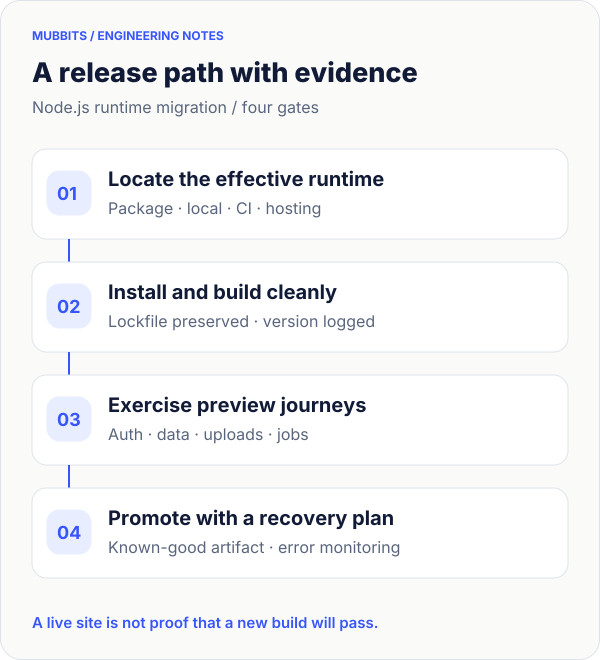
Prepare rollback around a deployment artifact
Before promotion, retain the known-good deployment identifier and confirm the host's actual rollback procedure and permissions. Do not assume reverting a Git commit will rebuild successfully on an unsupported runtime. The recovery path must work under the platform's current deployment rules.
Avoid an irreversible data-format change in the same release. If one is unavoidable, plan data compatibility independently; sending traffic to older application code will not undo a database migration. Record the decision and rehearse recovery in a suitable test environment.
After release, watch errors and the specific journeys exercised in preview. Compare logs against the pre-release baseline, then close the migration only after a fresh deployment and a meaningful observation period both succeed. Remove stale runtime pins from secondary jobs so the next release does not rediscover the same issue.
Frequently asked questions
Will an existing Node.js 20 Vercel deployment immediately stop serving traffic?
Vercel's deprecation notice says existing deployments continue working. The deployment restriction concerns new builds and functions using the deprecated version. Verify your own project rather than waiting for an urgent release to uncover it.
Should I migrate directly to Node.js 26?
Evaluate support across the application and its host. At this article's October 7, 2026 review, Node.js 26 is Current and 24 is LTS. This guide uses 24 as the candidate to test, not a guarantee that every dependency will work unchanged.
Is changing engines.node enough?
It changes a configuration input. You still need a clean installation, successful production build, effective-version verification, and tests of the integrations that use the runtime. Align local and CI settings to make failures reproducible.
Does a static Next.js export need a Node migration?
Its build environment can still require one. A static export may be served without a Node application server, but Node-dependent build tools and any separate functions or jobs have their own runtime requirements.
Let’s work through your next step.
Tell us what you’re building, what you’ve tried, and where you need a hand. We’ll work with you to define a practical way forward.