

Publishing an iOS app is a release process: prepare the signed build, prove the important user journeys, complete the App Store record, and submit the right version for review. Uploading an archive is only one step. The practical tips in this guide help product teams keep those steps connected, especially when a new device changes how the interface behaves.
This guide was checked against official Apple documentation on October 7, 2026. Apple’s October 5 announcement says iPhone Duo submissions are open and customer availability begins October 23. We cover preparation for that launch without implying that we have tested a retail device. The sample workflows and acceptance checks are original MUBBITS recommendations; the linked Apple pages define the platform requirements.
Key takeaways
- Keep the app record, bundle ID, version and uploaded build aligned; record exactly which archive was tested.
- For iPhone Duo preparation, Apple points developers to Xcode 27.1 and Device Hub. Verify the current tool release before building.
- Test resizing and continuity between displays, including Split View and asymmetric safe areas.
- Prepare genuine screenshots for both Duo displays. Apple has announced a Duo screenshot requirement starting April 2027.
- Give reviewers a working app, reachable services and clear access instructions, then confirm submission and release status separately.
1. Make the release traceable before opening App Store Connect
Start with a small release record that a teammate can use without guessing. Our recommended fields are the repository revision, app bundle ID, visible version, build identifier, backend environment, enabled features and person responsible for release. This is particularly useful when a team keeps several builds in testing and a production archive is created by a different person.
Apple associates an uploaded build with an app and version using its bundle ID and version number; the build string identifies that build. Create the app record before uploading. In Xcode, inspect the selected signing team, app identifier and capabilities, then validate the distribution archive. Let the account owner resolve any outstanding agreements in App Store Connect before the planned submission.
A practical trick is to put the version and build in an internal diagnostic screen or support report. When someone reports a problem, your team can establish which binary they actually installed. Keep signing credentials in the approved release system, with access held by the people responsible for the app.
For an illustrative field-visit app, the release record might name the visit-booking journey, map integration and offline draft storage. A successful compile does not prove that those services point to the intended environment. Check a fresh install of the uploaded candidate, then make the release record refer to that exact build.
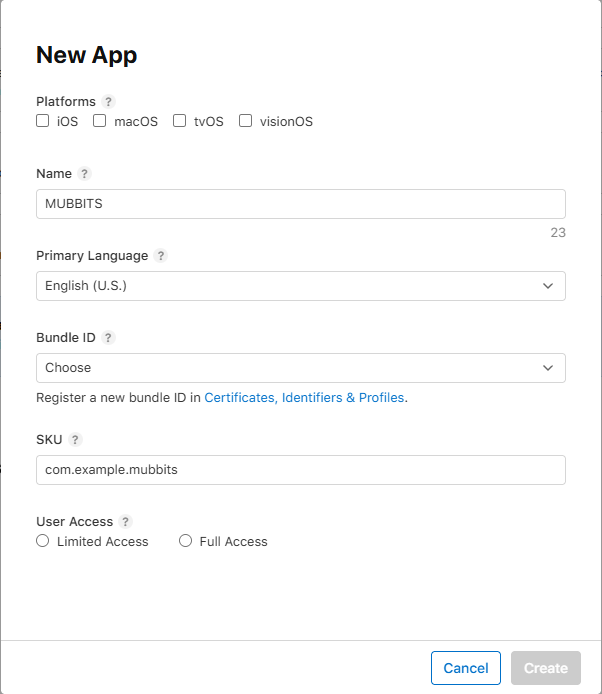
In Apps, choose the add button, then New App. Select iOS for an iPhone app, enter the product name and primary metadata language, and choose the registered bundle ID that matches the Xcode project. Decide which team members need access before selecting Create. Creating this record does not publish the app.
| Field | What to enter or check |
|---|---|
| Platforms | Select iOS for an iPhone app, including iPhone Duo. Add other platforms only when the product supports them. |
| Name and primary language | Use the app’s customer-facing name and the default language for store metadata. MUBBITS is the example name in this capture. |
| Bundle ID | Choose the registered identifier that exactly matches the Xcode project. If it is missing, register the app’s identifier in Certificates, Identifiers & Profiles first. |
| SKU | Choose a unique internal tracking ID. It is not shown to customers and cannot be changed after creation. com.example.mubbits is an illustrative SKU, not a required bundle ID. |
| User Access | Choose Full Access or select the users under Limited Access, according to the team’s intended app permissions. |
Apple: create an app record before uploading
Apple: upload builds and match version identifiers
Apple: bundle ID, SKU and primary-language definitions
Publishing Android too? Read our Google Play deployment guide
Create the app record in App Store Connect
2. Prepare for iPhone Duo with the current tools
Apple’s latest launch preparation update recommends recompiling with Xcode 27.1 and using Device Hub to inspect Duo poses and orientations. On the date we checked, Apple’s Duo resource page labels the available tool as Xcode 27.1 Release Candidate. Follow the download and submission guidance current at the time of your release rather than treating a tool’s status as permanent.
Keep device optimization and general submission deadlines separate. Apple’s submission page announces that, starting April 2027, iOS and iPadOS uploads must use the iOS and iPadOS 27 SDK or later and target iOS 15 or later. Its October 5 notice also announces required Duo screenshots from April 2027. Those are future changes relative to this guide’s October research date.
Our recommendation is to reserve a Duo readiness task before the public launch, with a named owner and a reproducible simulator test. Rebuilding with a newer SDK can change presentation, so compare the new build with the approved app instead of assuming that recompilation finishes the work. Retain screenshots of defects and the steps that reproduce them.
You do not need to turn every existing iPhone layout into a new product. Prioritize your primary task, the controls needed to finish it and the state that must survive a display change. If a third-party navigation or camera library sits in that path, check its current compatibility guidance and test the installed integration.
Apple’s October 5 update: prepare and submit for iPhone Duo
Apple: current iPhone Duo tools and resources
Apple: current submission guidance and April 2027 requirements
3. Test the task across Duo displays, not just the opening screen
Apple’s Duo design guidance calls for layouts that resize, use size classes, margins and safe areas, and preserve functionality and state between displays. Its engineering talk recommends local layout information instead of assumptions about a main screen or interface orientation. Safe area insets can differ on each side; custom controls need to accommodate that difference.
For the field-visit example, open a partially completed visit form on the outer display, change the device configuration, and continue the same draft on the inner display. Check that the selected customer, typed notes and validation state survive. Then return to the smaller space. A wide layout may show a list and detail together, but the task should remain recognizable in the compact layout.
Treat the following table as an original test plan for your app. It is not an Apple certification checklist or a claim that these tests alone guarantee approval. Run it on the candidate build, capture the actual outcome and file defects against the precise configuration.
If you use React Native, Flutter or another shared framework, the app still needs to behave correctly within Apple’s native environment. Check the framework and native modules together. Test the keyboard, sheets and overlays during resizing; a framework’s support statement cannot establish that your particular form or navigation stack preserves its state.
| Configuration | Exercise | Evidence to retain |
|---|---|---|
| Outer display | Start the primary task, show the keyboard and submit a valid form. | All required controls remain reachable. |
| Inner display | Continue the same task after opening the device. | Draft, selection and navigation state persist. |
| Split View, either side | Complete the task with reduced available space. | No hidden action or clipped foreground control. |
| Folded and rotated poses | Exercise sheets, media and custom bars. | Content adapts without losing the task. |
| Accessibility settings | Repeat with larger text and VoiceOver. | Labels, reading order and actions remain usable. |
4. Capture App Store screenshots after the layout is accepted
Use screenshots from the actual approved interface, with sample data that makes the feature understandable. Our recommendation is to plan a short sequence: explain the task, show the app doing it, then show its useful result. Capture the relevant layout directly instead of stretching a narrow phone image to represent the inner display.
Apple’s screenshot specification currently lists the following Duo dimensions. Portrait and landscape are separate accepted alternatives; inspect App Store Connect’s available asset slots and the linked specification when you upload. The same page accepts JPEG or PNG images and excludes alpha channels and transparency. Its currently required iPhone slot is the Dynamic Island medium display; Duo preparation does not remove the existing submission requirements.
Check every localized asset after placing its wording. A translation may wrap differently or push a useful control out of view. Preview the complete product page in App Store Connect, and make sure the screenshots describe the build you are submitting rather than a proposed feature.
Keep source captures and final exports in different folders with device, locale and build in the filename. That small habit makes later updates easier: a designer can find the original capture, and a release manager can identify whether an old screenshot belongs to the current binary.
| Display | Portrait | Landscape |
|---|---|---|
| Outer display | 1398 × 2034 pixels | 2034 × 1398 pixels |
| Inner display | 2007 × 2853 pixels | 2853 × 2007 pixels |
Apple: screenshot specifications and required display sizes
Apple: App Store asset best practices
Explore Apple’s new product page headers and search-result creatives
Is your iOS release ready for review and iPhone Duo?
Bring the candidate build, key user journeys and App Store assets. We can help plan device checks, submission preparation and a repeatable release handoff.
5. Reconcile privacy disclosures with the shipped dependencies
Apple requires app privacy details for new apps and updates, including relevant practices of integrated third-party partners. Privacy manifests document collected data and required-reason API use, with additional requirements for specified SDKs. These are related records, but completing one does not establish that the others accurately describe your app.
Our practical approach is to inventory each dependency in the release candidate and record what information it handles, why it receives it and where it goes. Check analytics, crash reporting, authentication, advertising and embedded web flows. Review permission wording against the actual feature and behavior when the user refuses access. Give the person completing App Store Connect answers that are tied to this inventory.
Apps that support account creation must let users initiate account deletion within the app under Apple’s deletion guidance. For the illustrative field-visit app, test that journey with a disposable sample account and confirm what happens to its drafts and server-side record. Explain any retained information accurately; disabling login is not the same as deleting an account.
Before enabling paid features or third-party sign-in, map the planned flow to the applicable App Review sections and storefront rules. Digital entitlements, physical services and regional exceptions need deliberate treatment. Keep a written decision about your own flow, then test purchases, restored access and signed-out behavior where they apply.
6. Give testers and reviewers a complete, reachable app
Use TestFlight to gather feedback on the uploaded candidate before submission. Ask testers to perform a concrete journey and record the build, device, steps and result. For the field-visit app, that could mean creating a visit, saving a draft offline and reopening it when connectivity returns. Include a fresh install and an upgrade from the currently distributed version if one exists.
Apple’s completeness guidance requires final submissions, working URLs and a functional backend; apps with login should include demo account information. Our recommendation is to copy the exact review instructions into a fresh installation and ask someone outside the implementation team to follow them. Check every role and paid or restricted area that the review needs to reach.
Create sample records specifically for that account and keep it usable throughout review. Explain unavoidable access steps clearly. If the app depends on a physical accessory or a particular service configuration, document what the reviewer needs. Provide accurate notes about the feature instead of a sales description that leaves the path unclear.
A useful review note names the starting screen, access method, feature steps and expected result. It should also identify anything intentionally unavailable in the candidate. Resolve placeholders and broken flows before submitting; adding a note does not repair an incomplete experience.
7. Distinguish upload, review submission and public release
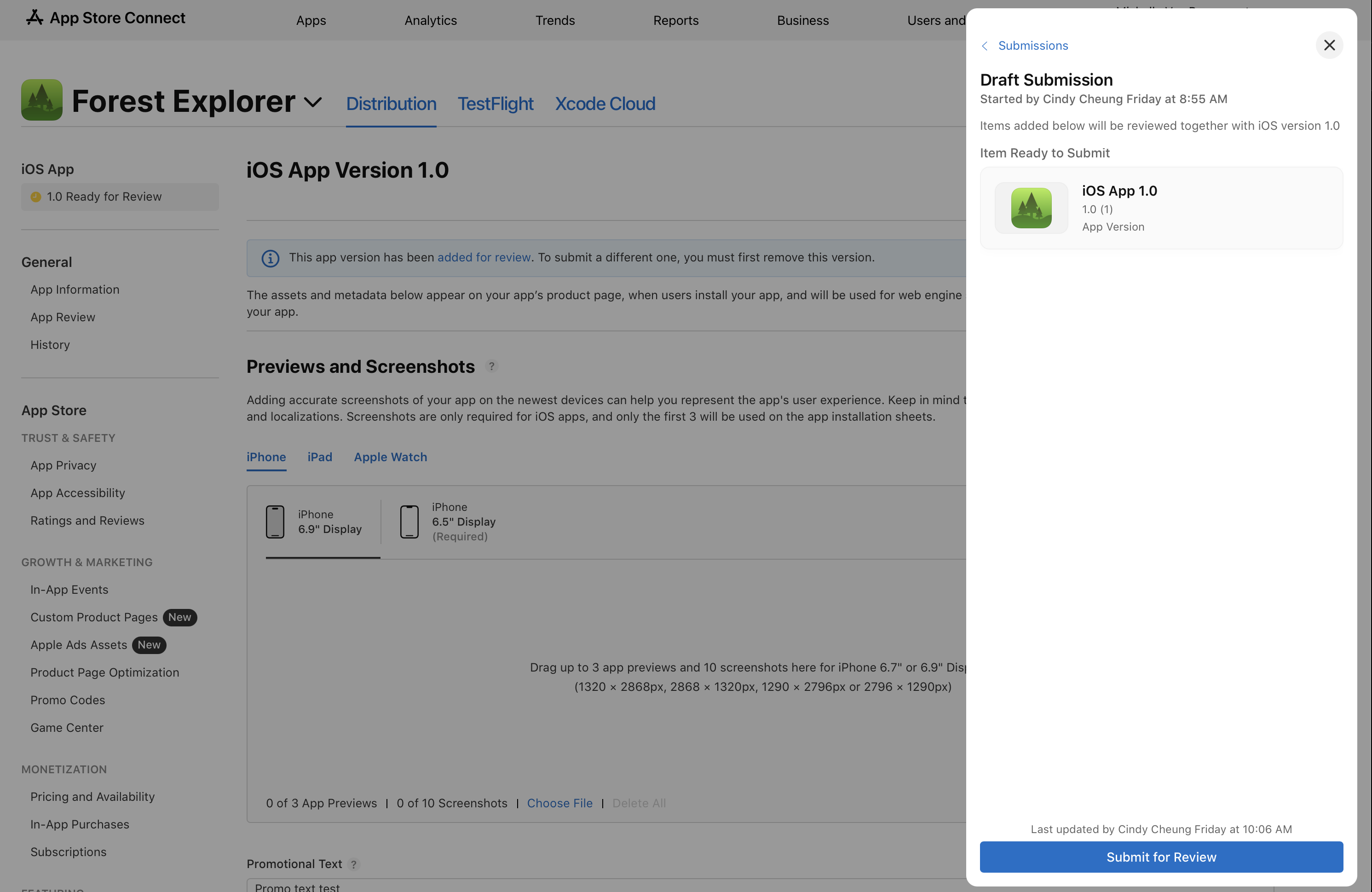
After uploading, wait for processing and confirm that the intended build appears in the correct version record. Finish the required metadata, rating answers and applicable declarations, then select that build. Apple’s submission instructions distinguish Add for Review from Submit for Review: adding the version to a draft does not send the submission to App Review.
Choose the release option deliberately. For a coordinated first launch, our recommendation is to retain an explicit release decision after approval and check the product page before beginning the marketing announcement. Confirm the selected territories, support destination and available version using a real store account where appropriate.
For an update, Apple’s phased release distributes automatic updates over seven days. Anyone can still manually download the version, so the mechanism does not confine access to the initial automatic-update cohort. A pause is useful for controlling further distribution; it does not remove a binary already installed on a customer’s device.
Keep the backend compatible with users who have not updated. If a new app version needs a changed API response, plan how old clients will continue to operate. Retain a way to disable an affected server-controlled feature while a corrected binary goes through review, and test that recovery path before you need it.
Apple: submit an app and send the draft for review
Apple: release a version update in phases
Send the draft submission for review
8. Leave a useful handoff for the next release
The best deployment shortcut is a release package your team can reuse. Our recommended handoff includes the candidate identifiers, test evidence, asset sources, disclosure decisions, review notes, store status and a short list of unresolved limitations. Assign someone to review support reports and crashes after launch, with an agreed response path for an urgent defect.
Use completion criteria that describe outcomes. The app opens from a fresh store install; a user can finish the primary task; the support link works; the team can identify the installed build; and a second release can be produced from retained instructions. Record what you actually checked, including whether Duo coverage was simulator-only at the time.
For a product released on both platforms, share the feature specification and approved copy, but keep the platform submissions independently traceable. The Android build has its own signing certificates, testing access, declarations and release controls. Our companion Google Play guide covers those differences so the two launch plans can meet at a single product decision.
- Record which official requirements were checked and the date of that check.
- Retain the exact archive, asset exports and environment settings used for submission.
- Recheck store declarations when a dependency or data flow changes.
- Revisit Duo device testing when retail hardware becomes available.
Continue with Google Play deployment tips and release controls
Frequently asked questions
Can I submit an iPhone Duo app before the device is available to customers?
Yes. Apple’s October 5, 2026 notice says optimized app submissions are open; customer availability starts October 23. Use the current Apple development tools and document the test coverage you actually achieved.
Are iPhone Duo screenshots mandatory today?
As checked October 7, Apple announces the Duo screenshot requirement for April 2027. Follow the currently required device slots and asset specifications in App Store Connect while preparing Duo captures.
Does a successful upload mean the app is submitted for review?
No. Confirm processing, select the build and complete metadata. Apple distinguishes adding items to a draft with Add for Review from sending the submission with Submit for Review.
Does phased release guarantee an easy rollback?
No. Apple’s phased release governs automatic updates, while users may manually download the update. Retain a recovery plan for customers already on the new binary and keep backend compatibility with older clients.
Let’s work through your next step.
Tell us what you’re building, what you’ve tried, and where you need a hand. We’ll work with you to define a practical way forward.