

To publish an Android app on Google Play, prepare a release bundle that can be installed and used through Play, complete the app’s declarations and store listing, satisfy the testing access applicable to your account, and submit a production release. Build upload, review approval and public availability are separate events. Keeping them separate makes a launch easier to plan and a defect easier to diagnose.
We checked this guide against official Google Play and Android documentation on October 7, 2026. It covers current mobile-app requirements and original MUBBITS release tips, with explicit distinctions between a first launch and an update. If you are also shipping on iOS, the linked companion guide covers App Store submission and Apple’s new iPhone Duo preparation.
Key takeaways
- Use the intended permanent package name and a new versionCode for each update; test the bundle distributed through Play.
- Mobile new-app and update submissions currently need Android 16, API 36, or higher, subject to an applicable approved extension.
- Personal accounts created after November 13, 2023 need the qualifying closed test: at least 12 continuously opted-in testers for 14 days before applying for production access.
- Include dependency behavior in Data safety answers and provide the applicable account deletion paths.
- Plan first-launch publication separately from managed publishing and staged update rollouts.
1. Establish ownership, package identity and signing
Confirm that the business responsible for the app controls the developer account and that the people preparing the release have the appropriate access. Our recommended release record names the account owner, package name, repository revision, visible version, versionCode and backend environment. Check any verification or setup tasks that Play Console presents before committing to a public launch date.
Google’s setup guidance says package names are unique and permanent, and versionCode must increase for each update. Google Play uses Android App Bundles to produce device-specific APKs. Prepare the signed release AAB, then inspect its application identifier and version information rather than relying on the filename supplied by a build service.
With Play App Signing, the upload key and the app-signing key serve different purposes. Third-party services such as authentication and maps need the app-signing certificate fingerprints relevant to Play-distributed installations, not only the upload certificate. Google’s current signing documentation includes configurations with multiple certificates, so use the fingerprints shown for your supported device versions.
A practical release trick is to test sign-in and connected services using an installation from the intended Play test track. In an illustrative appointment app, authentication may work in a developer build yet fail in the distributed build if the provider’s certificate registration is incomplete. Record the certificates you configured and the installation source that passed.
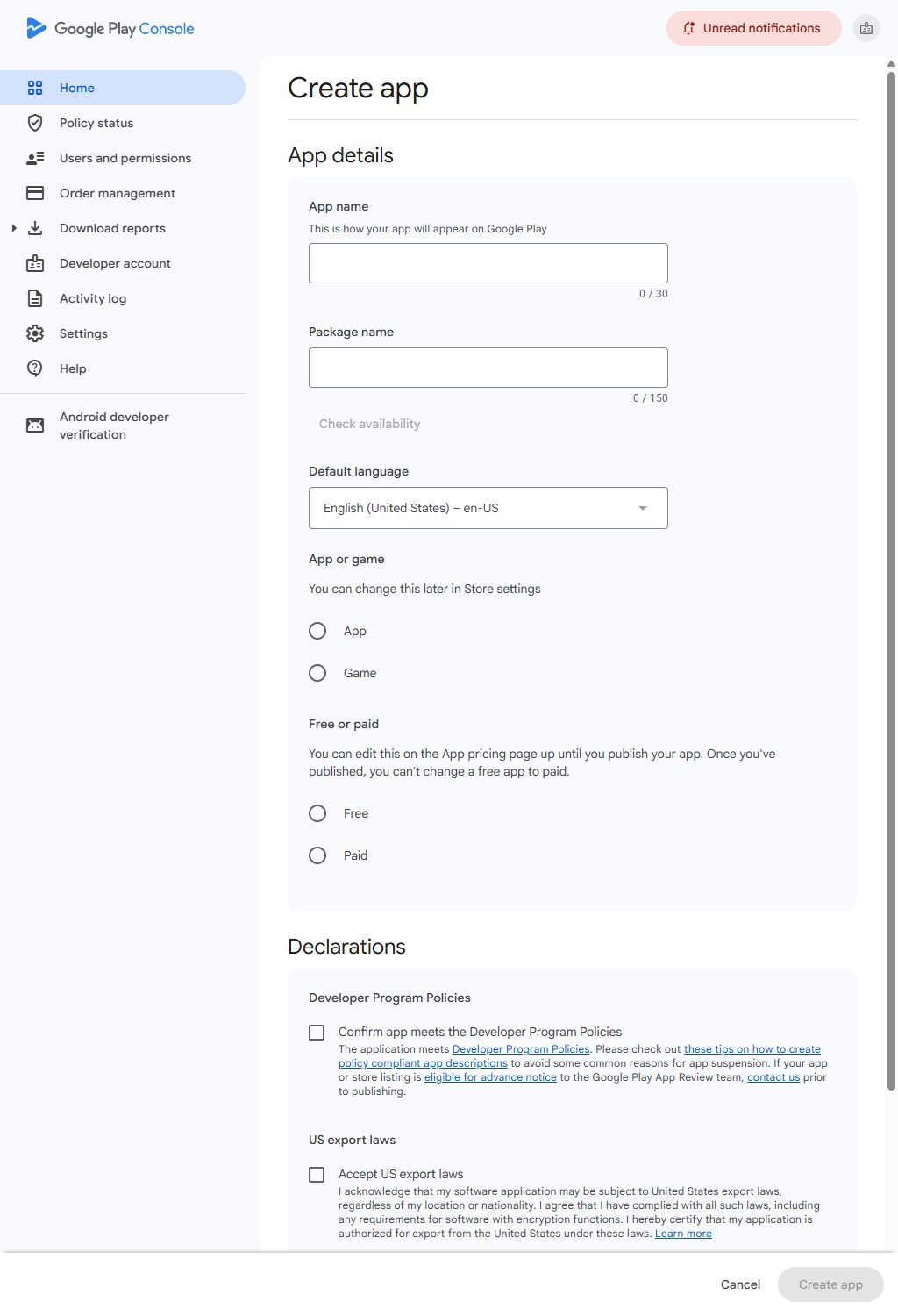
To open the setup form, use Home → Create app in Play Console. The form we inspected on October 7 also asks for the package name and provides Check availability. Match it to the release bundle’s application identifier. Choose the listing’s default language, App or Game, and Free or Paid, then read the declarations and any terms presented before creating the record. Complete the contact and dashboard setup tasks that follow. The console can change the order of these steps.
Decide the app’s download price deliberately. The current form warns that a published free app cannot be changed to paid. This choice concerns downloading the app, so plan any subscription or in-app purchase setup separately. Creating a console record is only the start of the release workflow.
| Field | Practical check |
|---|---|
| App name | Enter the name users should see on Google Play. The captured form allows up to 30 characters. |
| Package name | Use the intended permanent application identifier from the release build, then check availability. Do not substitute an example identifier. |
| Default language | Choose the starting language for your store listing and prepare any additional localizations. |
| App or game | Choose the category that describes the product; the form says this can be changed later in Store settings. |
| Free or paid | Confirm the download-price model before launch. The form says a published free app cannot be switched to paid. |
| Declarations | Read the policies, export declarations and applicable terms presented by the console. Acknowledge them only when the app and responsible publisher can make those declarations. |
Google Play: create and set up your app
Google Play: app signing keys and API-provider fingerprints
Shipping iOS too? Read our App Store and iPhone Duo guide
Start with the Google Play Create app form
2. Check target API and native-library compatibility early
Google’s current policy, effective August 31, 2026, requires new mobile apps and app updates to target Android 16, API level 36, or higher. Existing-app availability has a separate threshold: API 35 or higher for the mobile case. Wear OS, TV, XR and Automotive have their own requirements. An eligible extension must be requested and approved through the applicable Play Console process; it is not a default exemption.
Do not confuse targetSdk with minSdk. Raising the target concerns the behavior and policy expectations your app adopts; the minimum determines the oldest supported platform. Our recommendation is to review the relevant Android behavior changes, rebuild with compatible dependencies and test the user journeys affected by permissions, background activity and window behavior.
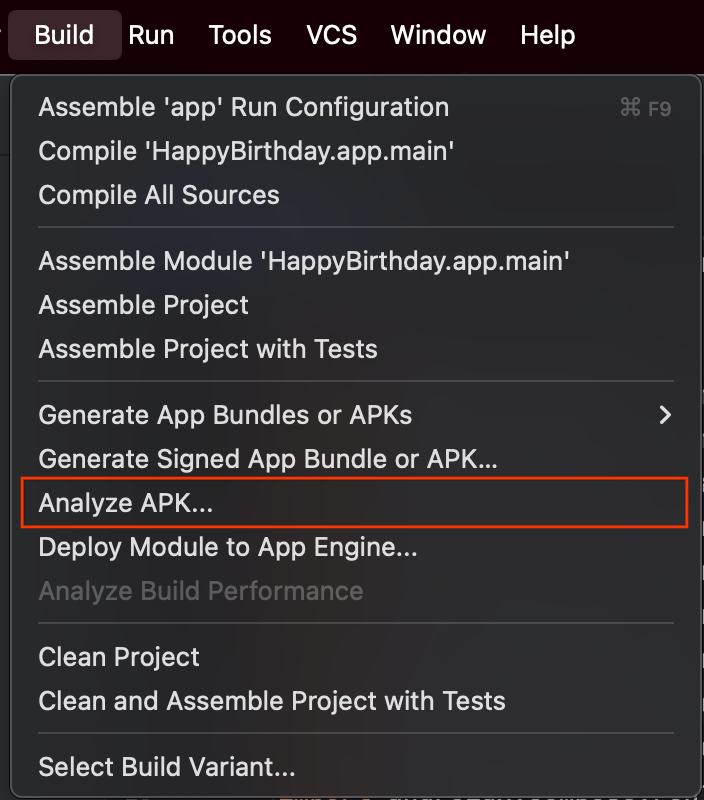
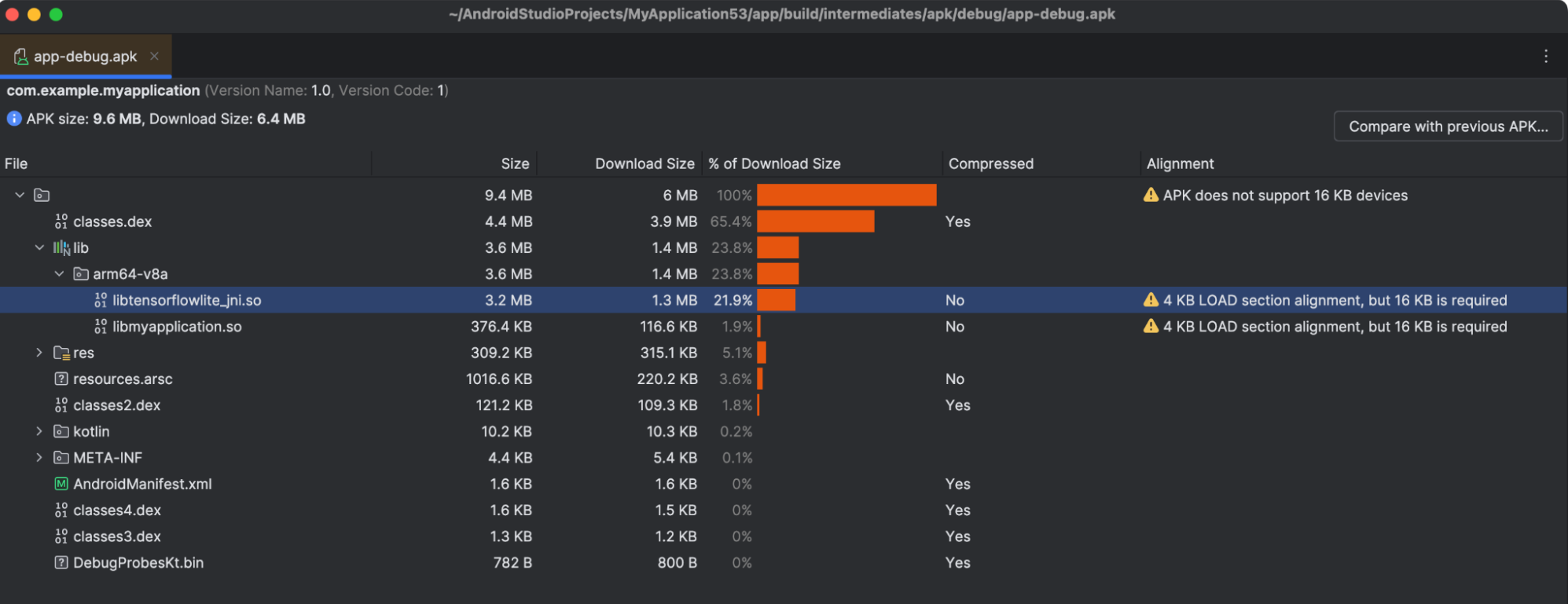
Android’s current 16 KB guidance says apps targeting API 35 or higher must support 16 KB memory pages on 64-bit Play devices, and lists February 1, 2027 as the point when non-supporting updates cannot be released. Dependencies can introduce native libraries even when your application code is mostly JavaScript or Kotlin. Use APK Analyzer and the documented alignment checks, then run the actual app in a 16 KB environment.
Keep compatibility evidence with the candidate build. If the appointment app includes an image processor or native database, test the features that exercise those libraries. Changing a build setting alone cannot prove a bundled library works. Avoid copying an old release checklist with an outdated deadline into the new launch plan.
Google Play: current target API levels and extension rules
Android Developers: support and test 16 KB page sizes
Open APK Analyzer from the Build menu
Inspect native libraries and alignment warnings
3. Plan testing around the account’s production-access rules
For personal developer accounts created after November 13, 2023, Google requires a closed test with at least 12 testers continuously opted in for the preceding 14 days before you apply for production access. Meeting the count and duration lets you apply; the application also asks about testing, feedback and readiness. Internal testing does not replace that qualifying closed test.
Our recommendation is to recruit people who can exercise the intended use of the app, give them a small task list and maintain a feedback record. For the appointment example, ask them to create a booking, reschedule it, deny a notification permission and reopen the app after a failed connection. Record the device, build, issue and fix instead of treating opt-in counts as your only evidence.
Tell testers how to remain in the test and how to report a problem. Track coverage of important journeys and follow up on incomplete evidence. Do not claim an official minimum daily session count that Google’s published requirement does not specify. Useful participation and a clear account of changes matter when you explain the test.
Before applying, confirm the candidate’s setup is complete and review the actual questions in your dashboard. Keep enough time for further testing or a review response. Avoid selling a guaranteed fourteen-day launch: the qualification period, production-access decision and app review are distinct parts of the process.
Google Play: testing requirements for newer personal accounts
4. Complete Data safety from the real data flows
Google’s Data safety documentation includes data handled by integrated libraries and SDKs. Apps on closed, open and production tracks generally need the form, while apps exclusively on the internal testing track are exempt from that section. Even an app declaring no collection needs the applicable form and a privacy-policy link when published on covered tracks.
Our practical tip is to build a data inventory before answering the questionnaire. For each feature and dependency, name the data involved, its destination, its purpose and whether the user can choose the collection. Check authentication, crash reporting, analytics, ads and any app-controlled web content. Have engineering and product review the same inventory so the store answers reflect the shipped configuration.
The illustrative appointment app might transmit account details and booking records, while a diagnostics SDK receives crash information. A developer cannot infer no collection from the absence of an advertising library. Trace what actually leaves the device and apply Google’s definitions and exceptions to that implementation.
Keep the privacy-policy URL available to users and reviewers, and make the policy describe the app in the listing. When a dependency changes, compare its behavior with the previous inventory before updating the store declarations. A form accepted once is not evidence that later data flows remain accurately disclosed.
Google Play: Data safety scope, SDKs and privacy-policy requirements
Can your team explain every step of the Android release?
Share the candidate bundle, account setup and test evidence. We can help review signing, device compatibility, store preparation and release controls.
5. Make account deletion and reviewer access usable
Where a mobile app supports account creation, Google’s deletion guidance requires an in-app deletion path and a web resource where users can request account and associated-data deletion. The web path must work for someone who has uninstalled the app. A page that sends them back to reinstall does not achieve that purpose.
For the appointment example, test deletion using a disposable account containing sample bookings. Confirm the request reaches the responsible system, the user receives a clear explanation, and any information retained for a legitimate reason is disclosed accurately. Keep the public resource discoverable and aligned with the app or developer name in the store listing.
Google’s app-content preparation guidance also covers access to restricted areas, ads, target audience, content ratings and applicable sensitive-permission declarations. Our recommendation is to have a teammate follow the exact reviewer instructions on the Play-installed candidate. Include access to subscription or role-specific features where they exist, with sample data ready to use.
Complete the forms based on the product’s actual behavior. A broad age selection or a permission declaration should not be a guess intended to move past a dashboard warning. Check any additional policy applicable to your audience, sensitive feature or payment model before submitting that experience.
Google Play: app account deletion requirements
Google Play: prepare app content and restricted access for review
6. Check the installed experience and the store promise together
Prepare listing copy and captures after the main journey is working. Our recommendation is to describe what a new user can achieve, using screenshots from the current app with deliberate sample data. Localize the important wording, inspect it at the actual listing size and remove claims about functionality that has not shipped.
Test the app from Play on representative small and large Android windows, with the keyboard open and permissions refused. Android’s adaptive guidance addresses layouts that respond to available window space across phones, foldables and tablets. Check the task after resizing, not merely whether the first screen fills the display.
For the appointment app, begin a reschedule, change the window size, then finish it. Check that the selected appointment and unsaved edits persist and that the confirmation action remains reachable. Repeat with larger text and a screen reader. If you use a shared framework, include its native integrations in this test rather than assuming every screen responds identically.
Keep platform device claims precise. iPhone Duo belongs in the iOS release plan; an Android bundle cannot be published to that device through Google Play. Share the lesson about preserving state during resizing, but use Android devices and supported test environments for Android evidence.
Google Play: listing and preview-asset setup
Android Developers: get started with adaptive apps
Read the iPhone Duo-specific preparation in our App Store guide
7. Use the correct controls for a first launch or an update
Prepare the production release with its intended bundle, release notes and distribution choices, then inspect the errors and warnings before sending it for review. Check Publishing overview to establish whether changes are drafts, in review or ready to publish. Our recommendation is to retain a screenshot or export of that state with the release record so everyone uses the same meaning of submitted.
Google’s release guidance says rollout percentages are unavailable for an app’s first production release. Managed publishing requires an app that is already available and cannot be used for the first publication. Do not plan a first-ever public launch around controls intended for subsequent updates.
For eligible updates, managed publishing lets you control when reviewed changes are published, while a staged rollout controls the share of eligible users receiving an update. Google says staged percentages do not increase automatically. Halting distribution does not uninstall the version from users who already received it.
For a first launch, finish the test-track work, select territories deliberately and leave time for review. Announce availability after checking the live product page and installing the distributed build. For an update, choose a percentage and observation period based on your app’s usage and risk, then increase it only after reviewing the evidence.
| Control | First publication | Eligible update |
|---|---|---|
| Production release | Publishes in the selected countries or regions after the release process. | Replaces the distributed version through the chosen release process. |
| Managed publishing | Unavailable for the first publication. | Can hold approved changes until the team publishes. |
| Staged rollout percentage | Unavailable for the first production release. | Can increase the percentage manually after observing results. |
Google Play: prepare and roll out a release
8. Watch production behavior and prepare a corrected release
Use Android vitals and your support channels to investigate production quality. Google’s vitals guidance covers signals such as crashes and application-not-responding events. Our recommendation is to connect each reported issue to its app version, device conditions and affected task before deciding whether to widen an update rollout.
Write a short release observation plan in advance. Name the person monitoring sign-in, bookings, notifications and any purchase flow; define how an urgent defect reaches engineering; and retain the instructions for publishing a corrected build. For a small new app, a quiet dashboard may reflect limited traffic rather than proven reliability, so combine it with deliberate production smoke checks.
Keep the backend usable by older clients and by users on the faulty version while a correction is prepared. If you retain a server-controlled recovery option, test the user experience it produces. A disabled booking feature still needs a clear explanation and a path for existing appointments.
Archive the final AAB, source revision, certificate-registration record, asset exports, declarations and review notes. A new owner should be able to explain how this release was built and reproduce the next one without reconstructing decisions from chat history.
- Confirm the production listing and install path before announcing availability.
- Keep testing feedback and the fixes made during qualification.
- Recheck target API and native-library guidance for each release.
- Treat a halted rollout as a distribution control, with a separate recovery plan for installed users.
Google Play: monitor technical quality with Android vitals
Complete the companion App Store submission and iPhone Duo checklist
Choose a mobile foundation with our React Native and Flutter guide
Frequently asked questions
Does every Google Play developer need 12 testers for 14 days?
The published requirement applies to personal accounts created after November 13, 2023. Qualifying testers must remain continuously opted in for the preceding 14 days before the production-access application. Check the requirements shown for your own account.
Which target API does a new mobile app need in October 2026?
Google’s current rule requires Android 16, API 36, or higher for new mobile apps and updates. Existing-app availability uses a separate threshold, and other form factors have their own rules. Verify any approved extension in Play Console.
Can I stage the first production launch to one percent of users?
No. Google says rollout percentages are unavailable for the first production release. Use test tracks to gather evidence before that launch; staged rollout percentages apply to updates.
Does managed publishing guarantee a review date?
No. It controls publication of approved changes for an already available app. Review remains a separate process, so leave time for a response and verify the live listing before announcing a release.
Can I deploy to iPhone Duo through Google Play?
No. Prepare the iOS version through Apple’s development and App Store submission process. Our linked App Store guide covers Duo layout tests, current screenshot specifications and the announced April 2027 changes.
Let’s work through your next step.
Tell us what you’re building, what you’ve tried, and where you need a hand. We’ll work with you to define a practical way forward.