

Apple is giving app teams two more places to explain why their product belongs on someone’s device: a creative header on the product page and a dedicated image or video in search results. The useful question for a product team is what each placement should help a prospective user understand. A polished campaign visual earns its space when it makes the app’s purpose easier to recognize and the download decision better informed.
Apple announced the launch on October 5, 2026. This original MUBBITS guide was researched on October 7 using Apple’s announcement, specifications and App Store Connect documentation. It explains the new controls, proposes a practical creative brief, and shows how to evaluate a change without assuming that more artwork automatically means more downloads.
Key takeaways
- Product page headers and search-result creatives are optional additions, separate from app screenshots and app previews.
- Apple documents the new placements for iOS 27 and iPadOS 27 or later; keep the rest of your listing useful too.
- Prepare the search and product-page messages together, then export for the specific placement or Apple’s universal template.
- Upload and approval are separate from selecting and publishing a placement. A first app submission and a live-app refresh follow different paths.
- Use the console preview and a defined experiment to assess clarity, cropping and conversion before expanding a creative campaign.
1. What Apple has introduced
Apple’s October announcement opens new image and video placements alongside a central Asset Library and a preview tool. The library lets teams prepare artwork ahead of a campaign, while previewing shows how the listing will look before submission.
This gives a team room to express an app’s identity or content beyond a literal screen recording. It also creates another product decision: which message deserves the customer’s first attention? Our recommendation is to begin with one useful promise the shipped app can fulfill, then decide whether photography, illustration, interface detail or a short video makes that promise clearer.
Keep the asset categories distinct in your plan. A header communicates at the top of the product page, and a search creative communicates in the results list. Screenshots and app previews continue to explain the actual experience. Plan all of them as one story so a visitor can move from an appealing promise to concrete product evidence.
2. Write two creative briefs around one product promise
Our suggested starting point is an illustrative meal-planning app with a specific promise: help a household turn a weekly plan into a usable shopping list. For search, a compact view of that transformation may communicate the purpose quickly. For the product page, a wider composition can introduce the product’s identity while the first screenshots explain planning, editing and shopping. These are proposed creative directions, not results from a MUBBITS campaign.
Ask a teammate who has not worked on the app to look at the proposed asset briefly, then describe what they think the app does. If they describe a food-delivery service, a recipe magazine or a grocery retailer instead, revise the visual before polishing it. Attractive imagery can still set the wrong expectation.
Use the table as an original briefing worksheet. Keep the message consistent across the two placements, but assess each at the size and context in which it will appear. Apple allows a compatible universal asset to serve both placements. Reuse is helpful when the composition succeeds in both contexts; otherwise, commission separate exports with the same visual language.
| Placement | Question the visual should answer | Suggested evidence |
|---|---|---|
| Search results | What useful job does this app perform? | A recognizable meal plan becoming a shopping list, with a short localized phrase. |
| Product page header | What experience and identity should I expect? | A coherent household-planning theme that leads naturally into the app screenshots. |
| First screenshot | How does the promised task actually work? | The current app’s real planning screen with deliberate sample data. |
| First-use experience | Can I reach the result that persuaded me to download? | An onboarding path that lets the user begin that same planning task. |
Apple’s WWDC26 session: the new placements and Asset Library
3. Export for the placement before refining the artwork
Apple publishes dedicated header and search-result specifications, plus a 5244 × 2950 PNG option listed for both image placements. Start with the appropriate Apple template and check the asset’s eligible placements in the console. A file being landscape does not establish that it is a compatible universal asset.
For dedicated videos, Apple lists 30 or 60 frames per second, a duration of 5–30 seconds, and MOV, M4V or MP4 files. The header uses 3840 × 1646; search uses the documented 3:2 resolution range. Both placements loop. Search videos remain muted, while a product-page video starts muted and can be unmuted.
Our production tip is to approve the composition at its rendered size before exporting the full batch. Keep the main subject and any essential wording readable after cropping. For the meal-planning example, the connection between the plan and list should survive a small display; a decorative table scene with tiny labels may lose that meaning. Evaluate the poster frame as a complete message in its own right.
| Image placement | Dimensions and aspect ratio | File type |
|---|---|---|
| Dedicated product page header | 3840 × 1646 pixels; 21:9 | JPEG, JPG or PNG |
| Dedicated search results | 1920 × 1280 to 3840 × 2560 pixels; 3:2 | JPEG, JPG or PNG |
| Option listed for both placements | 5244 × 2950 pixels; 16:9 | PNG |
- Apple’s image specification excludes transparency and alpha channels.
- Confirm the current template, dimensions and compatible placements before uploading.
4. Find the controls in App Store Connect
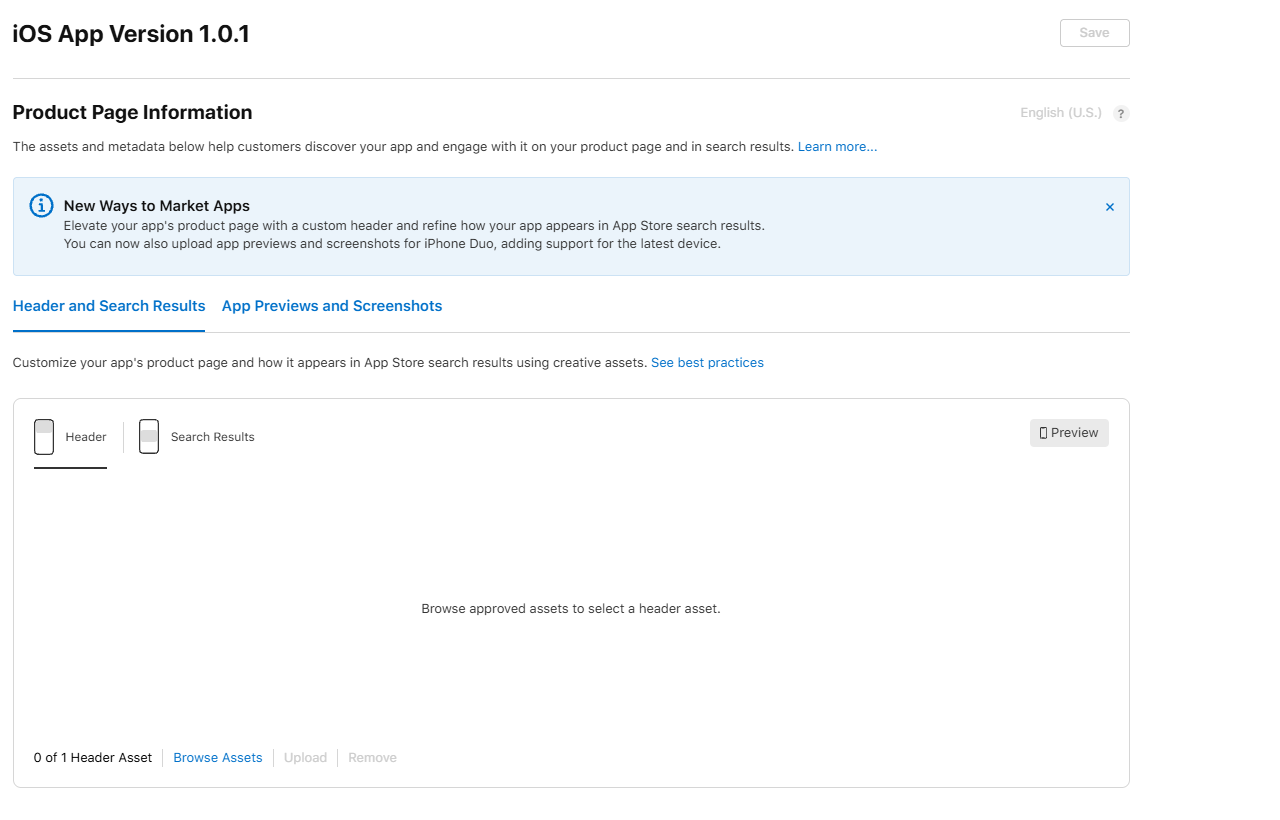
Open the app’s platform version, then the Header and Search Results tab in Product Page Information. Choose the placement. Apple documents direct upload for an editable version or selection from the library through Browse Assets, followed by saving and previewing. The supplied capture below shows an empty header well that asks for approved assets; a disabled Upload button should be read in the context of that version’s state.
For a new version, the selected artwork becomes public after the version is approved and released. A version already live has a different refresh path: select approved library artwork, continue through Next, then Publish. Our operational recommendation is to have the owner confirm the app, language and placement at that last step.
Use meaningful names for the files and the library entries. For example, a team could include the product, placement, language, concept and revision in its naming convention. Retain the editable source and the approved export together. That makes it easier to identify the correct asset when several similar campaign variations are waiting in the library.
Apple: placement setup and updates for live versions
Follow the complete App Store release and iPhone Duo guide
The Header and Search Results controls
5. Prepare approval before the campaign date
Apple distinguishes a first app submission from later artwork updates. If the app has no approved version, its assets need to accompany the first version’s submission. After an app version has been approved, assets can be submitted independently through Asset Library. Artwork assigned to another submitted item is reviewed with that item, and an active submission can restrict a separate asset submission.
For a seasonal refresh, our recommendation is to agree on the concept and localizations early, send the assets through review, and retain a record of approval before scheduling the marketing launch. Make the publication owner responsible for checking the actual store placement. Approval of a file and publication of a chosen placement are different milestones.
The meal-planning app might prepare an autumn cooking theme while keeping its everyday planning screenshots available. Before using that theme, confirm that any featured recipes or functionality are in the current experience. An illustration of a capability that is still being built creates a mismatch that a successful upload cannot resolve.
Keep an evergreen alternative ready. If the campaign ends, another approved creative can keep the listing current without making a customer interpret an expired seasonal message. Record who will replace it and when the team will check the result.
Does your store listing explain the product clearly?
Bring the current app, listing assets and audience. We can help connect the creative brief, real product experience and release preparation.
6. Review the promise in the actual store preview
Apple’s asset guidance permits imagery beyond the app interface when it relates to the product’s functionality. It also calls for artwork suitable for a 4+ audience, accurate claims, localized text and readable compositions. Its restrictions include specific prices or discounts, website addresses, other marketplace branding, and Apple-designated recognition added into the artwork. Use the current guidance when approving the concept.
Our proposed review has two passes. First, inspect the rendered creative in light and dark appearances, supported devices, orientations and languages. Then read the header, first screenshots and opening product copy together. Check whether they all describe the same app, with the same feature scope and audience.
For video, play it silently from the poster frame and watch several loops. Have a reviewer explain the message without hearing the soundtrack. If understanding depends on narration, revise the visual sequence. Keep enough time to recognize the task and remove an abrupt final frame that makes the next loop distracting.
Include iPhone Duo in the preview checks where the console supports it. The creative asset is one part of the listing; Duo app screenshots and the behavior of the app itself still need their own preparation. Our linked deployment guide covers those device and release considerations.
- Confirm that every depicted feature is available to the intended customer.
- Check the smallest rendered text and the crop around the main subject.
- Inspect every language export rather than assuming a translated phrase will fit.
- Keep real app screenshots easy to find and consistent with the creative’s promise.
Apple: creative guidance, templates and review considerations
Apple: preview tool support for devices, orientations and Dark Mode
7. Evaluate one clear hypothesis and keep a useful record
A sensible first hypothesis for the meal-planning example is that showing the plan-to-list transformation will help new visitors identify the app’s purpose. Test that understanding with people before launching, then choose one measurable store change. Apple’s updated asset guidance recommends Product Page Optimization for alternative headers. Verify the treatment controls available in your console and record exactly which placements the experiment changes.
Apple’s acquisition documentation separates unique impressions, unique product-page views and downloads, and lets teams inspect acquisition by source. Its store conversion rate describes downloads relative to unique impressions, so do not rename it as a page-view conversion metric. For a search creative, watch the search audience; for a header experiment, account for people arriving directly from referral links as well.
Our suggested experiment record contains the original asset, hypothesis, replacement, selected languages, affected placements and start date. Keep screenshots, price and major campaign changes stable where possible. Changing several parts of the listing at once makes a result harder to explain. A universal asset can affect both creative placements, so record that coupling before interpreting the outcome.
A simple before-and-after comparison can help identify a trend, but shifting traffic and seasonality can also change downloads. Report that limitation when a randomized comparison is unavailable. Follow the customers beyond installation using the app’s own appropriately collected product metrics: can they reach the planning task, and does the experience deliver what the artwork suggested?
When the team chooses a winner, retain the evidence and the approved files. The useful outcome is a clearer listing and a repeatable decision process, with enough context for the next person to improve it. A new placement creates an opportunity to test a better explanation of the product; its existence alone is not evidence of an uplift.
Apple: header testing recommendations
Apple: acquisition sources and store funnel metrics
Apple: Product Page Optimization experiments and results
Plan the app version, screenshots and review with our App Store guide
Frequently asked questions
Are product page headers and search creatives required?
Apple describes these creatives as optional. Continue to prepare the screenshots and other metadata required for your app’s supported devices and submission.
Must a creative show the app interface?
Creative assets can go beyond in-use visuals, but Apple says the content must relate to the app’s functionality. Our recommendation is to retain clear product evidence elsewhere in the listing.
Can one creative serve both placements?
Apple supports compatible universal creative assets for both. Choose its universal template and verify placement compatibility; dedicated header and search exports have different specifications.
Do approved asset refreshes require a new app version?
For a version already live, Apple documents publishing an approved asset from the library without submitting a new version. An app without an approved version must submit its assets with its first version.
What appears if I do not select a search creative?
Apple’s guidance says In-App Events, app previews and screenshots appear when a search-result creative is not used. Inspect the listing preview rather than assuming the new creative is necessary.
Let’s work through your next step.
Tell us what you’re building, what you’ve tried, and where you need a hand. We’ll work with you to define a practical way forward.