

To distribute an Android beta through Google Play, add the tester’s Google account to the internal track, roll out a signed app bundle to that track, then send the opt-in link. Before asking the team to test, check the version code on one phone. An eligible tester can join successfully and still receive a newer production build.
Key takeaways
- Record the application ID and version code of the signed bundle before uploading it.
- Select and save the tester list, publish the internal release, then share its opt-in link.
- Verify the Google account and installed version code before diagnosing a missing feature.
1. Identify the bundle and its version code
Start with an app in Play Console, release permissions for its internal track and a release Android App Bundle (.aab) signed with your configured upload key. Check that the bundle’s application ID matches the Play app you selected. If you have separate apps for staging and production, write down which store entry and backend this test should use.
Record versionName and versionCode. The first is the reader-friendly version, such as 2.6.0. The second is the integer Android uses for upgrades. If the change is small, two uploads can both display 2.6.0 while carrying different version codes. Assign an unused higher code for your new build.
2. Add the Google accounts that will install it
In Play Console, open the app and go to Test and release → Testing → Internal testing. Open Testers, create an email list or choose an existing one, and add the Google account each person uses in the Play Store on their test phone. Select the list for this track, provide a feedback email or URL, and save the changes.
Start with one person. Have them open the Play Store profile menu and confirm the account before you add them. A work address that forwards to their usual inbox can receive your message while the store is signed in under a different account. Google allows up to 100 testers per app on the internal track.
Google Play’s internal test setup and tester opt-in instructions
3. Roll out to Internal testing and send the opt-in link
On the Internal testing track, open Releases and create a release. Upload the signed bundle or select the intended bundle from the library. Check its version code, enter concise release notes and review the release. Resolve blocking validation messages. Confirm the track shown on the final screen before starting the internal rollout.
Once the release is published, return to Testers and copy the shareable join link. A draft release cannot supply a working opt-in path. The first link or a newly published change can take time to become available. Open the link as a listed tester, enrol, then follow the Play Store download link on the same account. An unpublished app in internal testing usually won’t be found by searching its name.
Need a second pair of eyes on your Play release?
Bring your target track, version codes and the install problem your testers see. We can help trace the release from bundle to device.
4. Work out which build the phone should get
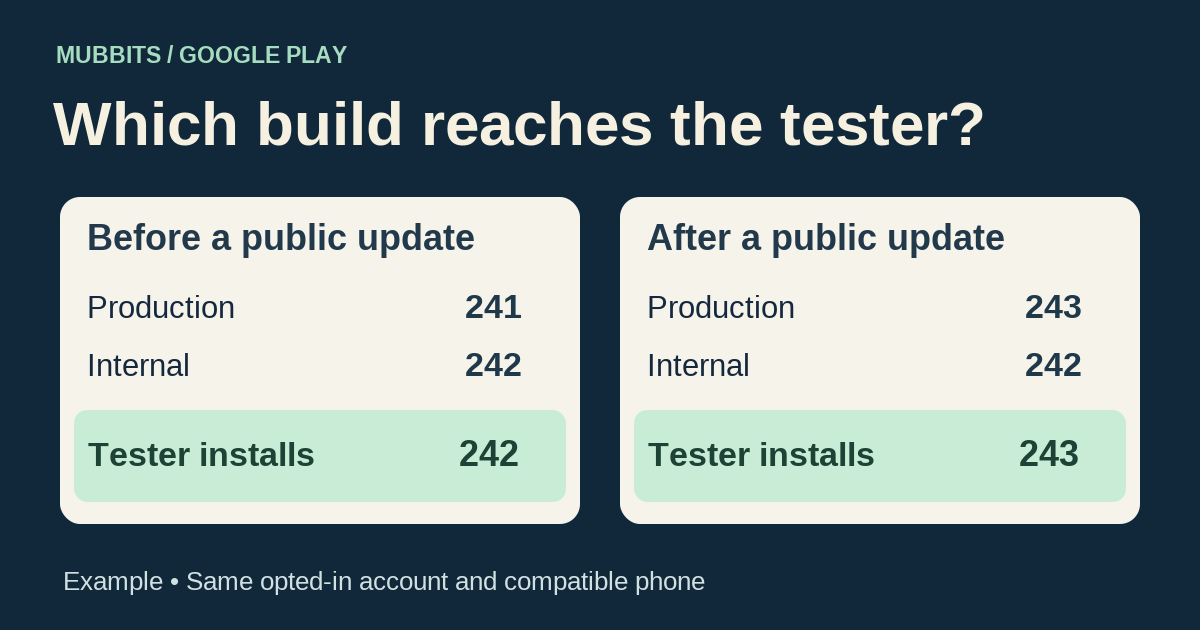
Suppose your field-service app has production version code 241. You upload internal build 242 to fix an offline job form. Priya has opted in and uses a compatible phone. Lee uses the production app and hasn’t joined the test. Both app screens display version 2.6.0. Here’s how to predict what each person can install.
| Available releases | Priya, opted in | Lee, production only |
|---|---|---|
| Production 241 · Internal 242 | 242, with the candidate fix | 241, the public build |
| Production moves to 243 · Internal stays at 242 | 243, the higher eligible code | 243, the public update |
| New internal candidate 244 · Production 243 | 244, the new candidate | 243, the public update |
How a production update can overtake an internal build
5. Verify one install before you invite the rest
Ask the tester to open your app’s About or diagnostics screen and read back the version and build code. If your app only displays the version name, a developer with an authorized test device can inspect the installed package. In the example below, replace the fictional application ID with your own. In the output, look for versionCode and versionName.
Give the tester a test account and a disposable job. For the offline fix, ask them to open job DEMO-17, disconnect, add a note, reconnect and reopen the job. The expected result is one saved note with the text they entered. Record the actual result, device, Android version and installed code alongside the report.
Check the installed Android package
Run from a development computer with Android platform tools and a connected, authorized test phone.
adb shell dumpsys package com.example.fieldserviceIf the link or update still doesn’t work
Follow the handoff in order. A tester who can’t enrol has a different problem from one who joined and received the wrong binary.
- Link missing in the console? Confirm the release was rolled out on the internal track and check its publishing status. A saved draft is still private.
- Link says the app is unavailable? Open it with the Google account on the saved tester list. Check the Play Store account on the device and device compatibility.
- Store offers no update? Compare the installed code with the highest eligible release. Check which account opted in and whether production has overtaken the candidate.
- Moving someone from internal to closed testing? Have them opt out of the internal test, then opt in to the closed track with an eligible account.
Frequently asked questions
Is internal testing the same as internal app sharing?
They are separate Play distribution methods. This tutorial uses a release on the Internal testing track with a tester list, an opt-in link and store-delivered updates. Use the link from that track when inviting the team.
Does an internal test meet a new personal account’s closed-testing requirement?
Google treats internal and closed testing as different tracks. If your account dashboard requires a closed test before production access, complete that separate process.
Can a tester install an internal build with the same version name as production?
Yes, when the tester is eligible and the candidate has the appropriate higher version code. Confirm the installed integer code. Matching version names alone cannot distinguish the two builds.
Let’s work through your next step.
Tell us what you’re building, what you’ve tried, and where you need a hand. We’ll work with you to define a practical way forward.